28 April 2026 · Dean Hume
Supercharge Your Clipboard with PowerToys Advanced Paste 📋

A few weeks ago, I wrote about how PowerToys Workspaces helped me stop wasting time arranging windows every morning. Since then, a few people asked what else I use from the PowerToys suite. So today I want to talk about another tool that's quietly become part of my daily workflow - Advanced Paste.
Have you ever copied something from a webpage, pasted it into a doc, and then spent the next two minutes stripping out all the weird formatting? Bold text that shouldn't be bold, font sizes that don't match, colours that make no sense. Yeah. It's one of those small annoyances that adds up over time.
Advanced Paste fixes that - and a whole lot more.
What is Advanced Paste?
Advanced Paste is a clipboard management tool built into PowerToys. The idea is simple: instead of just pasting whatever is on your clipboard as-is, you get to choose how it gets pasted. Plain text, Markdown, JSON, even as a file - all from a single keyboard shortcut.
Think of it like having a smart clipboard that knows what you actually need, rather than blindly dumping whatever formatting came along for the ride.
You open it with Win + Shift + V by default, and a clean little window appears with your paste options. That's it.
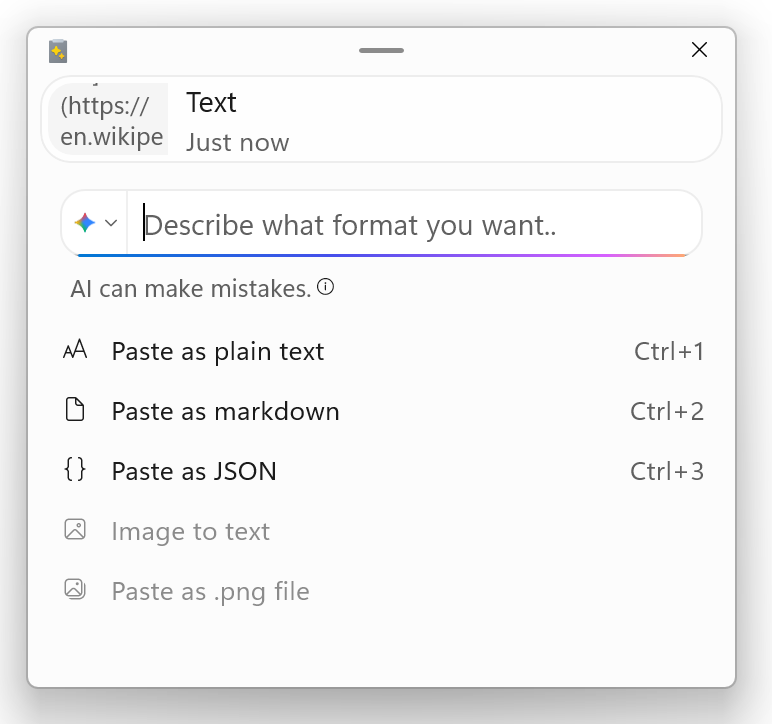
PowerToys Advanced Paste - AI
Paste as Plain Text
This is the one I use most. Copy something from a browser or a rich text editor, hit the shortcut, and paste it as pure unformatted text. No bold. No headings. No leftover HTML weirdness.
It sounds almost too simple - but honestly, that's the point. Removing that friction from something you do dozens of times a day is worth a lot more than it sounds.
You can also set a direct keyboard shortcut for this so you don't even need to open the Advanced Paste window. Just copy, hit your shortcut, and you're done.
Paste as Markdown
Got some HTML on your clipboard and need it in Markdown? Advanced Paste handles that conversion for you automatically. So something like:
<b>Paste</b> <i>as</i> <a href="...">Markdown</a>Becomes:
**Paste** *as* [Markdown](...)If you write documentation, blog posts, or work in any tool that uses Markdown - this one will save you a surprising amount of time.
Paste as JSON
Similar idea, but for structured data. If you've got XML or some other structured text on your clipboard and need it in JSON format, Advanced Paste converts it on the fly. No manual reformatting, no copy-pasting into a converter website.
As someone who spends time working across different tools and formats, this one is genuinely useful.
Paste as a File
This is where it gets a bit more interesting. Advanced Paste can take what's on your clipboard and paste it directly as a file - a .txt file, an .html file, or even a .png file for images.
The .html option is particularly handy if you're copying a section of a webpage (links, formatted text, images and all) and want to save it as a proper file rather than lose all that structure.
Image to Text (OCR)
Have you ever needed to copy text from a screenshot or an image? Normally that means manually typing it out, which is tedious at best.
Advanced Paste has a built-in OCR feature that pulls the text straight out of an image on your clipboard. It all runs locally on your machine - no data being sent anywhere. Just copy the image, open Advanced Paste, hit "Image to Text", and the extracted text is ready to paste.
I've used this more times than I expected - screenshots from Teams calls, error messages in images, text in PDFs that won't let you select it. It just works.
Paste with AI 🤖
This is the most powerful feature in the set, and it's worth calling out separately.
If you configure an AI model provider - OpenAI, Azure OpenAI, Mistral, Google, or a local model via Ollama or Foundry Local - you unlock a whole new level of clipboard transformation. You can type a prompt and the AI will reformat or rewrite your clipboard content based on your instructions.
Some examples of what you can do:
- Summarise a long block of text
- Translate text into another language
- Rewrite something in a more professional tone
- Generate code from a description
- Reformat data into a specific structure
The local model options (Ollama, Foundry Local) are worth a look if you'd rather keep everything on your machine and not worry about API costs or data leaving your device.
You can also save your most-used prompts as custom actions and assign them keyboard shortcuts. So if you regularly need to "translate to French and clean up formatting", you can do that in one keypress without even opening the window.
Setting It Up
If you haven't already got PowerToys installed, grab it from the Microsoft Store or via WinGet. Then:
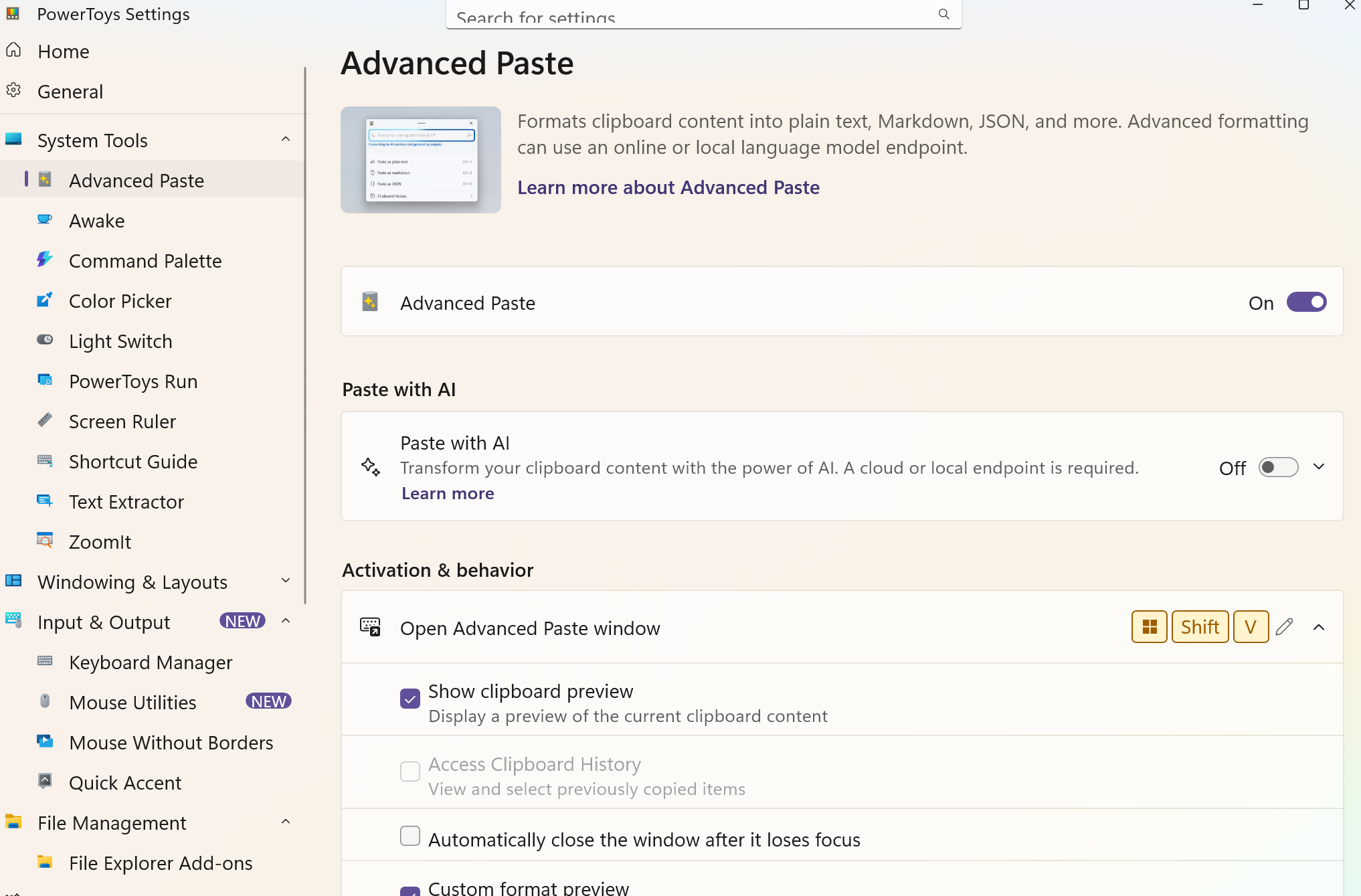
Setting up Powertoys Advanced Paste
- Open PowerToys Settings and navigate to Advanced Paste.
- Enable Paste with AI.
- I added Google's Gemini as a Model Provider. You'll need to enter an API key, but that is easily done depending on your AI Model Provider.
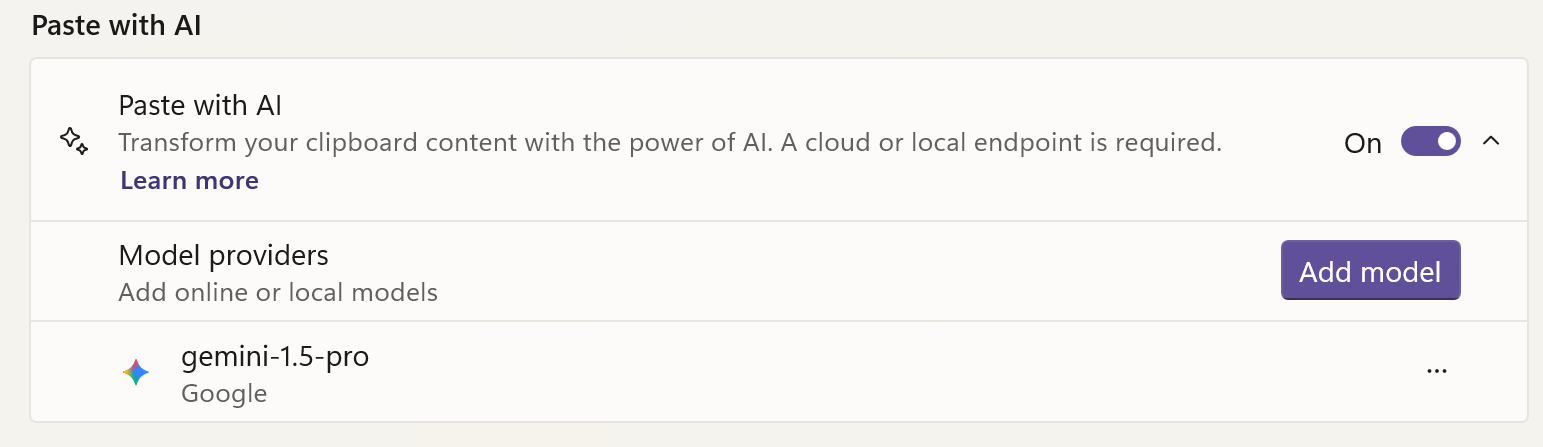
Add an AI model provider
Once you've completed all those steps, it should be working as expected. The default shortcut (Win + Shift + V) is easy to remember - think of it as an upgraded version of the regular paste you already know.
A Small Tool with a Big Impact
I'll be honest - I didn't expect Advanced Paste to become something I reach for every day. But like Workspaces, it's one of those tools that solves a real friction point so well that you quickly forget what life was like without it.
If you're already using PowerToys, enable it today. If you're not using PowerToys yet - what are you waiting for? 😄
The Advanced Paste docs are a great place to explore everything it can do.